05. Exercise: Setup QuizExample
Setup QuizExample
Before you start
Before you move on to building your QuizExample app, please do the following:
- Download the DroidTermsExample App - You need to have this app on your phone and you need to run it once. By running this app, your phone will store word and definition data locally on your phone. To get the app, you can download the app from here.
- Review the Following Concepts - For this lesson you will need to understand the following concepts from the SQLiteDatabase lesson:
- Contract Class
- Projection, selection, selection args, sort order
- Cursor Class
QuizExample Code
The code for this app can be found in the Lesson08-Quiz-Example folder of the Toy App Repository.
If you need to a refresher on how the code is organized, please refer to the concept where we introduced the code flow.
Explanation of QuizExample
Right now, QuizExample is a simple app that switches between two states. The changes made were:
- Include a library named
droidtermsproviderthat has a class in itDroidTermsExampleContract - Includes a layout for displaying the word and definition data with a button
- Includes strings for the buttons
- Includes two states:
STATE_HIDDENandSTATE_SHOWNand a variable calledmCurrentStatewhich keeps track of the current state - Includes a method called onButtonClick which is triggered when the button is clicked and toggles between the two states
- Includes two mostly empty helper methods
nextWordandshowDefinitionthat switch button text between two states.
You’ll use the code that has to do with state to keep track of whether the definition is showing or not.
The Big Picture
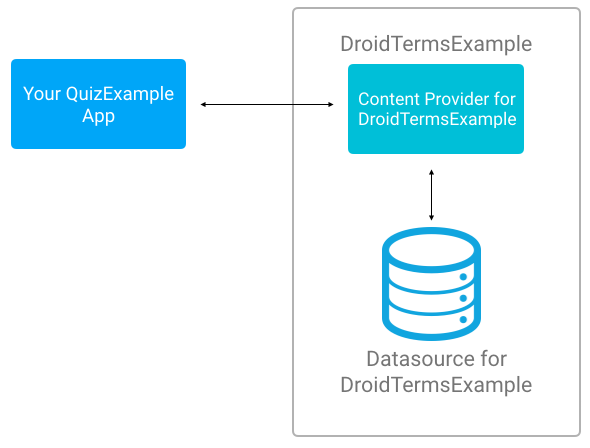
Right now your understanding of a ContentProvider is this:
The fuller diagram includes the concepts shown here:
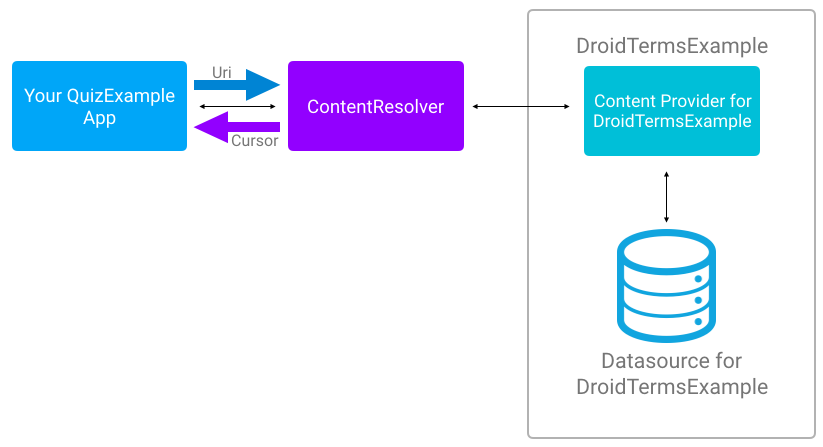
General Steps for Using a ContentProvider
You will take the following steps:
- Get permission to use the ContentProvider.
- Get the ContentResolver
- Pick one of four basic actions on the data: query, insert, update, delete
- Identify the data you are reading or manipulating to create a URI
- In the case of reading from the ContentProvider, display the information in the UI